
UsagePool · macOS menu bar · one app, five providers
Every AI usage limit, against the clock.
UsagePool reads the limits you already have in Claude, Codex, Cursor, Copilot and Antigravity, and draws each one against the time left in its own window. Hover a widget to see that provider’s current limits and reset times. The example below illustrates the reading.
Claude · Weekly · All Models 168h window Illustrative reading
Behind
Out in ~2h at this pace
How to read this →
02 / 06 · The comparison, moving
The marker walks one way. The fill drains the other.
One five-hour Codex window, three moments in it. The fill is what is left of your usage; the marker is what is left of the window. Which one is further right is the entire product.
Codex · Five-hour 5h window One window · three moments
Usage 86% Window 80% Ahead
Three samples · one five-hour window
- 01 Usage 86% Window 80% Ahead
- 02 Usage 38% Window 58% Behind
- 03 Usage 12% Window 34% Low
-
Phase 01 / 03
Two thirds of the budget left, one fifth of the window gone.
The fill edge is well to the right of the marker. More usage remains than time remains, so the meter is green and nothing needs your attention. This is the state most usage bars are designed to celebrate.
Codex · Five-hour 5h window
Usage 86% Window 80% Ahead
-
Phase 02 / 03
The marker has overtaken the fill edge.
Same window, later. Usage is draining faster than the clock, so the marker — walking right to left as the window elapses — has passed the fill edge. Amber does not mean you are out; it means the clock is winning, and the projection now says when.
Codex · Five-hour 5h window
Usage 38% Window 58% Behind
Out in ~1h at this pace
-
Phase 03 / 03
Under fifteen percent: red, whatever the clock says.
Below fifteen percent remaining the meter reports red regardless of the comparison, because at that point the only useful question is how long you have. A plain usage bar would still be showing you a number that looks survivable.
Codex · Five-hour 5h window
Usage 12% Window 34% Low
Out in ~25m at this pace
03 / 06 · Five providers
Your providers, in the menu bar.
Choose one provider with Free or Single, or use all five together with Full. Each widget opens its own provider card on hover. These examples show the kinds of limits available:
Claude · Session
Usage 71% Window 62% Ahead
Codex · Weekly
Usage 48% Window 66% Behind
Cursor · Cursor Models
Usage 13% Window 41% Low
Copilot · Premium Requests
Usage 55% Window 30% Ahead
Antigravity · Gemini-weekly
Usage 34% Window 44% Behind
04 / 06 · What stays on this Mac
Nothing UsagePool reads about your usage leaves this Mac.
The app reads your existing provider connections. Usage values stay on your Mac, and the privacy page explains the settings, license and network requests separately.
No API keys
UsagePool uses the tools you are already signed in to. There is no API key to paste. Provider requests use the sign-in already available through the supported local tool.
No account
There is no separate login and no hosted account. Nothing to sign up for, nothing to sign in to, nothing to be locked out of.
No telemetry
The app sends no analytics or telemetry. Updates and license activation are separate product functions, explained on the privacy page.
Current readings, no usage archive
UsagePool retains your settings, license and the latest connection projections needed for current limits. It does not collect a usage-history archive.
05 / 06 · The app
What it looks like on a real Mac.
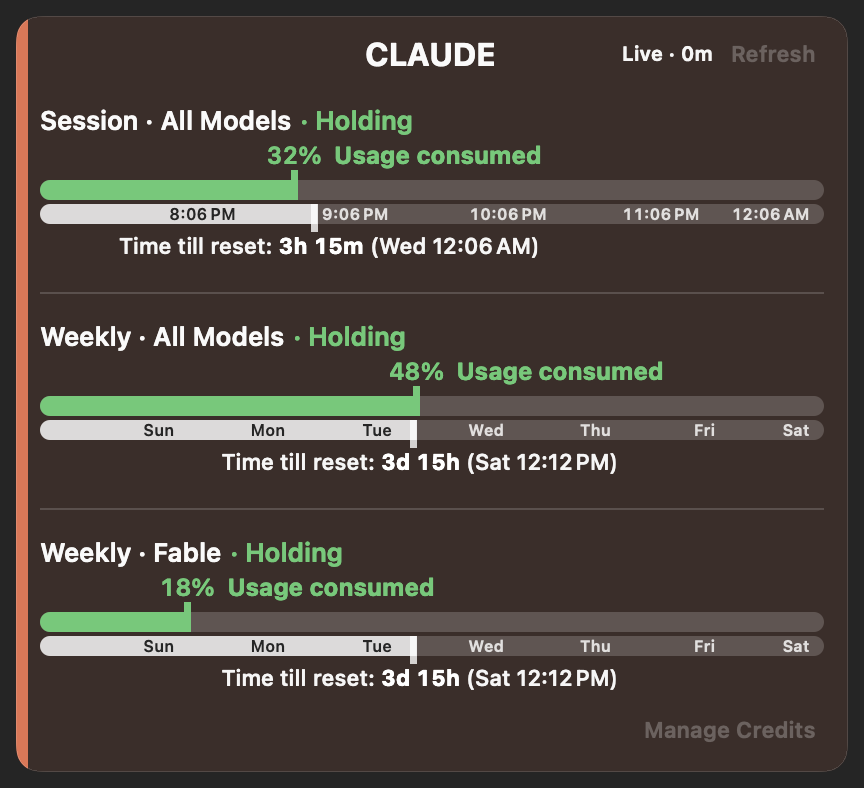
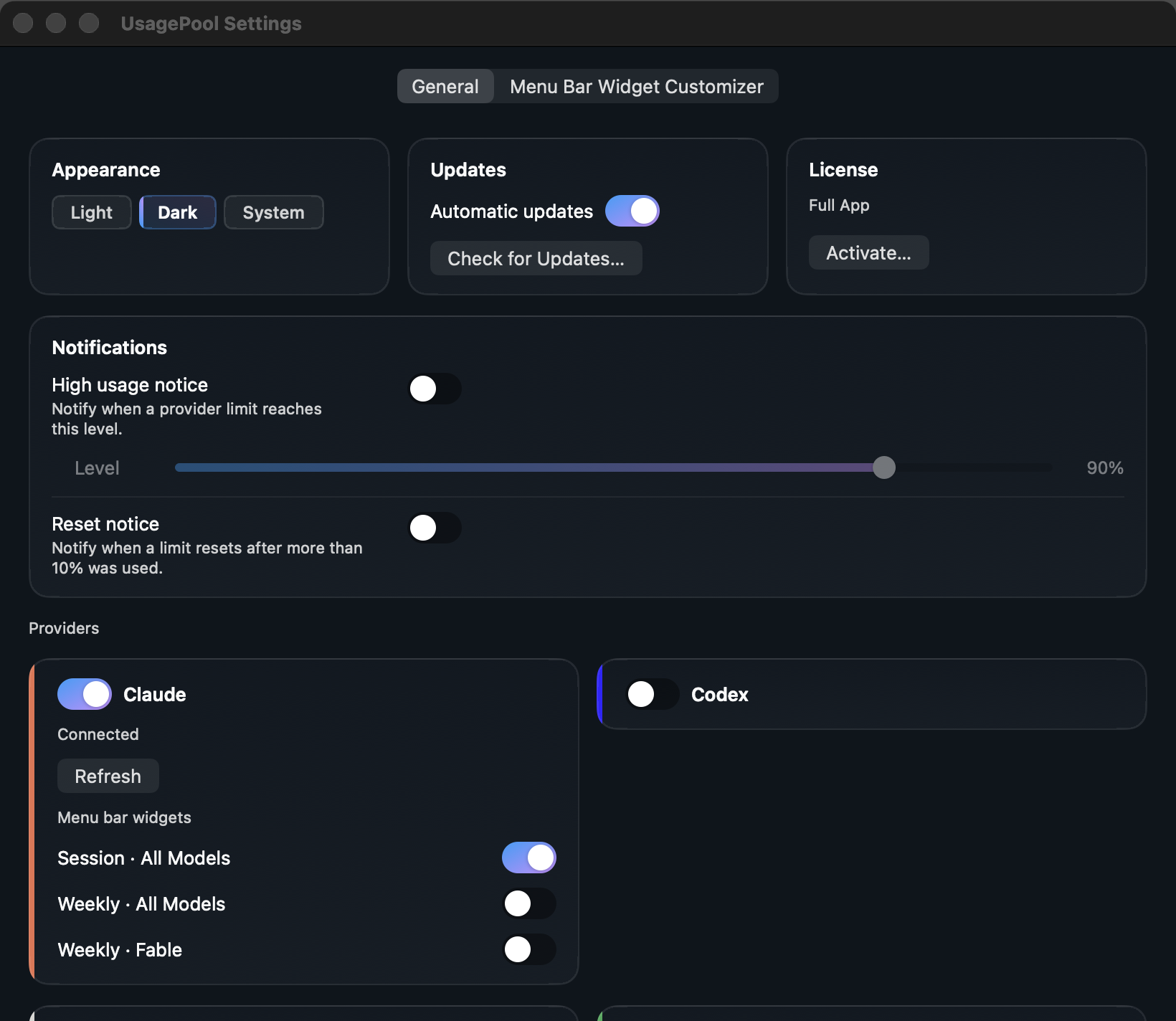
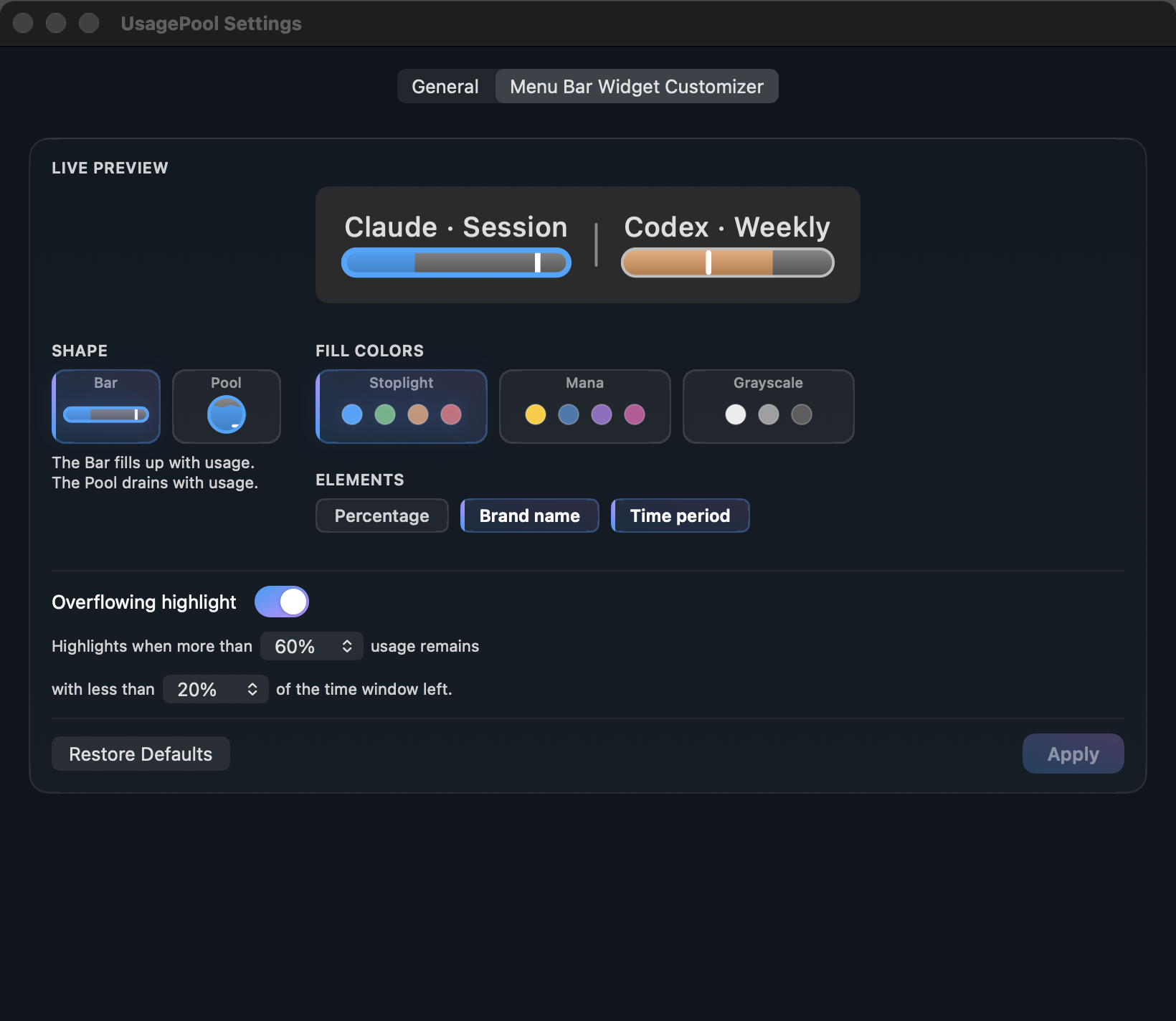
The Free widget, its provider hover card, and the two Settings tabs. These are native app captures with example readings; the Settings captures show a Full license.

06 / 06 · Start
Check what you already have installed.
UsagePool needs macOS 13 Ventura or later and at least one supported tool already signed in on this Mac. The public download is not available yet. Check the provider setup requirements while the release is being prepared.